
Chapter 00: Introduction & Quick Start Guide
Welcome to BahiKhata Green! This chapter will help you get started with the application in less than 5 minutes.
🥬 1. What is BahiKhata Green?#
BahiKhata Green is a simple, digital notebook and billing app made specially for vegetable and fruit traders, commission agents (आढ़ती), wholesalers, and retail shopkeepers.
Why is it special?#
- Super Fast: Create vegetable bills in just 3 taps.
- Works Without Internet: Even if your Wi-Fi or mobile data stops working in the mandi, you can still make bills and record payments. Everything syncs automatically when internet returns!
- Speaks Your Language: Available in Hindi (हिंदी), English, Bengali (বাংলা), Gujarati (ગુજરાતી), Marathi (मराठी), Punjabi (ਪੰਜਾਬੀ), Tamil (தமிழ்), Telugu (తెలుగు), and more.
- Direct WhatsApp Sharing: Send digital bills, payment receipts, and balance reminders directly to your customers and farmers on WhatsApp.
- Thermal Printer Ready: Connect any standard 58mm or 80mm Bluetooth or USB receipt printer to print instant paper slips.
🔐 2. How to Log In#
When you open BahiKhata Green, you will see the Login screen.
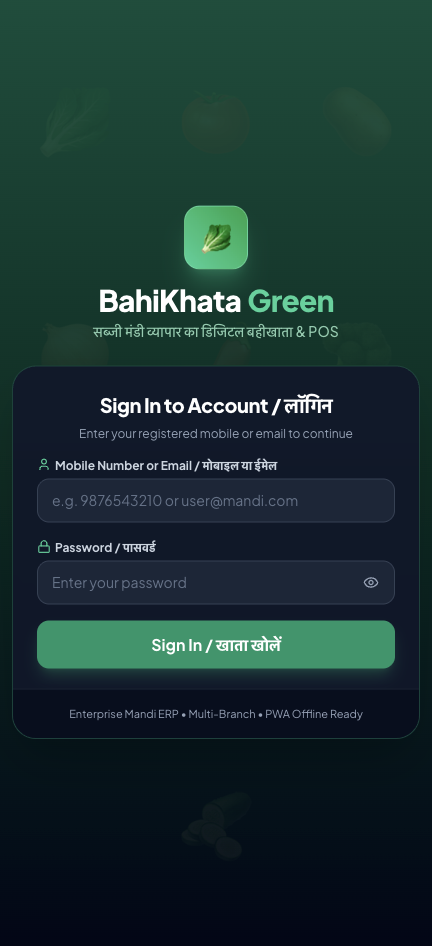 📱 Mobile App View
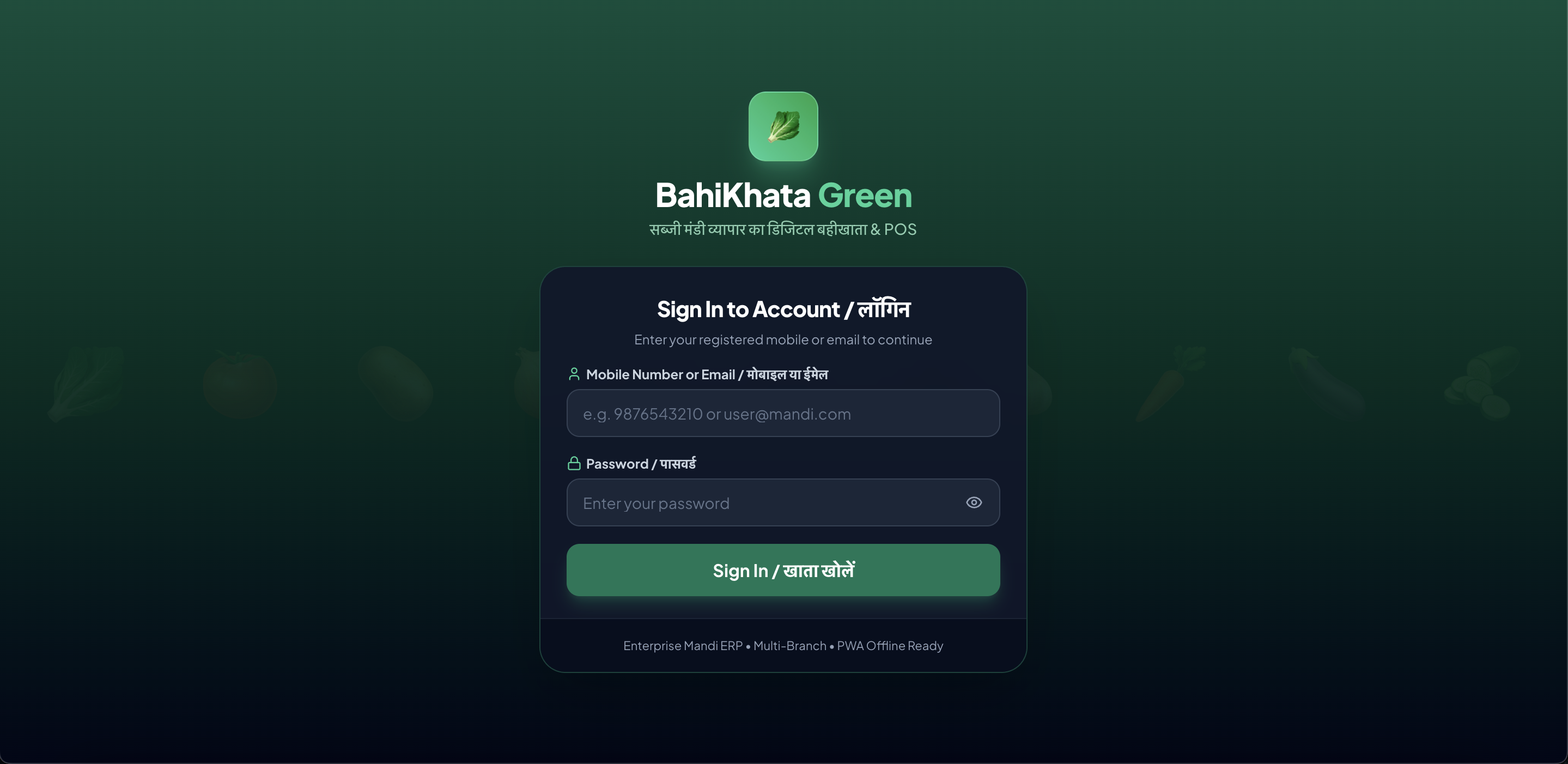 🖥️ Desktop Web View
Step-by-Step Login Instructions:#
- Enter Your Username or Mobile Number: Type your registered 10-digit mobile number or email address in the first box.
- Enter Your Password: Type your secret password in the second box.
(💡 Tip: Tap the little eye icon👁️on the right side to check what you typed if you want to make sure there are no typos.) - Tap 'Log In (लॉग इन करें)': You will be instantly taken to your shop's home dashboard!
⚠️ What to do if you see "Already Logged In on Another Device"?#
For security and data safety, the app will inform you if your account is active on another phone or computer.
🖥️ Desktop Web View
📱 Mobile App View
- Simply tap "Log Out Other Device & Continue". The app will safely close the old session on your other phone and log you in here immediately.
📱 3. Installing the App on Your Phone or Computer (PWA)#
You don't need to search through app stores. You can install BahiKhata Green directly onto your phone screen or computer desktop!
On Android Phone (Chrome):#
- Open the application in Google Chrome.
- A green prompt saying "Install BahiKhata Green App" will appear at the bottom.
- Tap "Install" (or tap the 3 dots at the top right of Chrome and select "Add to Home screen").
- The 🥬 green icon will appear on your phone home screen just like a regular app!
On iPhone / iPad (Safari):#
- Open the app link in Safari.
- Tap the Share button (the square with an arrow pointing up at the bottom).
- Scroll down and tap "Add to Home Screen".
- Tap "Add" in the top right.
On Windows / Mac Computer (Chrome or Edge):#
- Open the app link in Google Chrome or Microsoft Edge.
- Click the small Install App icon (a monitor with a down arrow) on the right side of the address bar.
- Click "Install". The app will now open in its own clean window without any browser borders.
🌐 4. Changing Your Language (भाषा बदलना)#
You can use the app in your regional mother tongue anytime.
📸 Screenshot Placeholder:
User menu dropdown showing the 'Language / भाषा' option expanded with a list of Indian regional languages with green checkmark next to the active language.
How to switch language:#
- Tap your User Profile Avatar (on desktop: bottom-left sidebar; on mobile: top-right corner or settings).
- Tap "Language / भाषा".
- Select your preferred language from the list:
- 🇮🇳 English
- 🇮🇳 Hindi (हिंदी)
- 🇮🇳 Bengali (বাংলা)
- 🇮🇳 Gujarati (ગુજરાતી)
- 🇮🇳 Marathi (मराठी)
- 🇮🇳 Punjabi (ਪੰਜਾਬੀ)
- 🇮🇳 Tamil (தமிழ்)
- 🇮🇳 Telugu (తెలుగు)
- 🇮🇳 Kannada (ಕನ್ನಡ)
- 🇮🇳 Malayalam (മലയാളം)
- 🇮🇳 Odia (ଓଡ଼ିଆ)
- 🇮🇳 Urdu (اردو)
- All menus, buttons, receipt words, and alerts will instantly update to your chosen language!
🗺️ 5. Screen Layout & Navigation Tour#
On Desktop / Laptop:#
- Left Sidebar: Contains all the main trade modules (Dashboard, Quick Sale, Purchase, Customers, Suppliers, Stock, Wastage, Payments, Expenses, Reports, Users, Settings).
- Branch Selector Pill (Top of Sidebar): Shows which Mandi stall or shop branch you are currently viewing.
- Top Header: Shows live internet status (🟢 Green = Online, 🔴 Red = Offline mode) and Quick Refresh button.
- Bottom-Left: Your name, role (Owner, Cashier, etc.), Language switch, and Logout button.
On Mobile / Tablet:#
- Top Bar: Shows the 🥬 BahiKhata logo, your current shop name, online/offline status, and the
☰Menu button. - Slide-Out Menu (Drawer): Tap the
☰button on the top left to see all pages and features. - Bottom Navigation Bar: Fast shortcuts to jump between Home (Dashboard), Sale (बिक्री), Purchase (खरीद), Customers (ग्राहक), and Stock (स्टॉक) with a single thumb tap!
🖥️ Desktop Web View
📱 Mobile App View
❓ Frequently Asked Questions (FAQ)#
Q1: Can my cashier and I use the app at the same time?
Yes! As the owner, you can create separate logins for your cashiers, helpers, and accountants from the Users & Roles section. You can all work simultaneously from different phones or computers.
Q2: What happens if I forget my password?
Ask your shop owner or administrator to reset your password from the Users & Roles page in Settings. If you are the shop owner, contact your system support team.
Q3: Do I need a continuous internet connection?
No! BahiKhata Green is built specifically for mandi environments where internet can be weak. You can keep creating bills and collecting payments offline. When your connection returns, everything syncs to the cloud automatically.
Q4: Will my data be lost if I close my phone browser?
No! All your sales, purchases, and customer records are safely stored in your device's memory and synced to the secure cloud.
➡️ Next Step:#
Now that you know how to log in and navigate, head over to Chapter 01: Daily Dashboard & Morning Routine to learn how to monitor your daily mandi business!